Building the new BlokSec mobile app
Introduction
I joined BlokSec as the sole mobile engineer for the 4.0 release. The release covered a rebuild of the mobile app in React Native with Expo, replacing two separate native iOS and Android codebases, a redesigned admin portal, and infrastructure upgrades.
BlokSec is an enterprise authentication platform that removes passwords and OTP codes. Employees sign in to workplace applications by approving a push notification in the BlokSec app or scanning a one-time QR code, then verifying with device biometrics.
The work ran six months on a team of fewer than five engineers. I owned engineering and product design for the mobile app and contributed to backend and admin dashboard work. The Expo rebuild shortened release cycles, allowed the user experience to be redesigned from scratch, and lowered the barrier for non-mobile engineers to contribute to the mobile codebase.
First impressions
App Store Preview
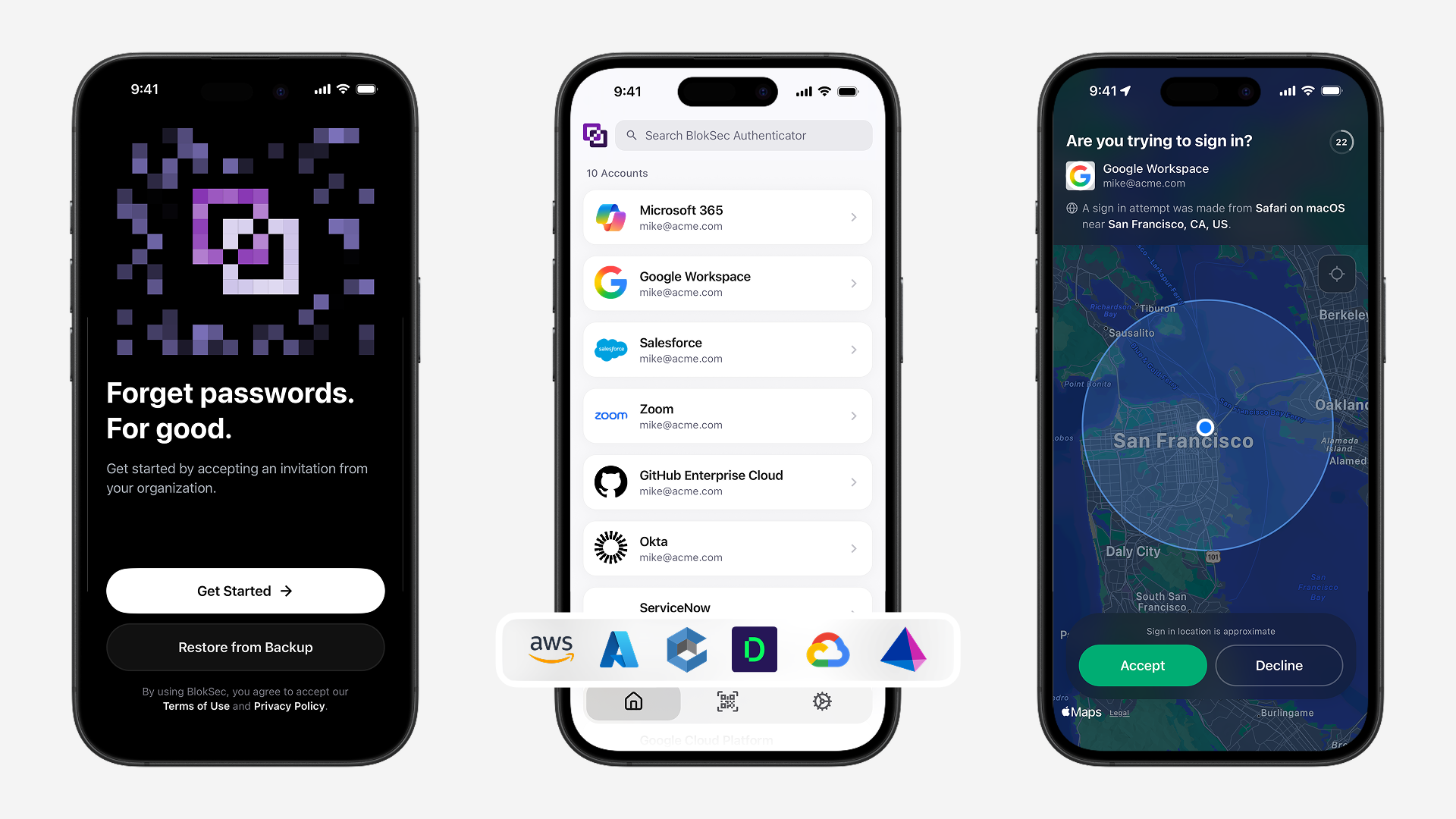
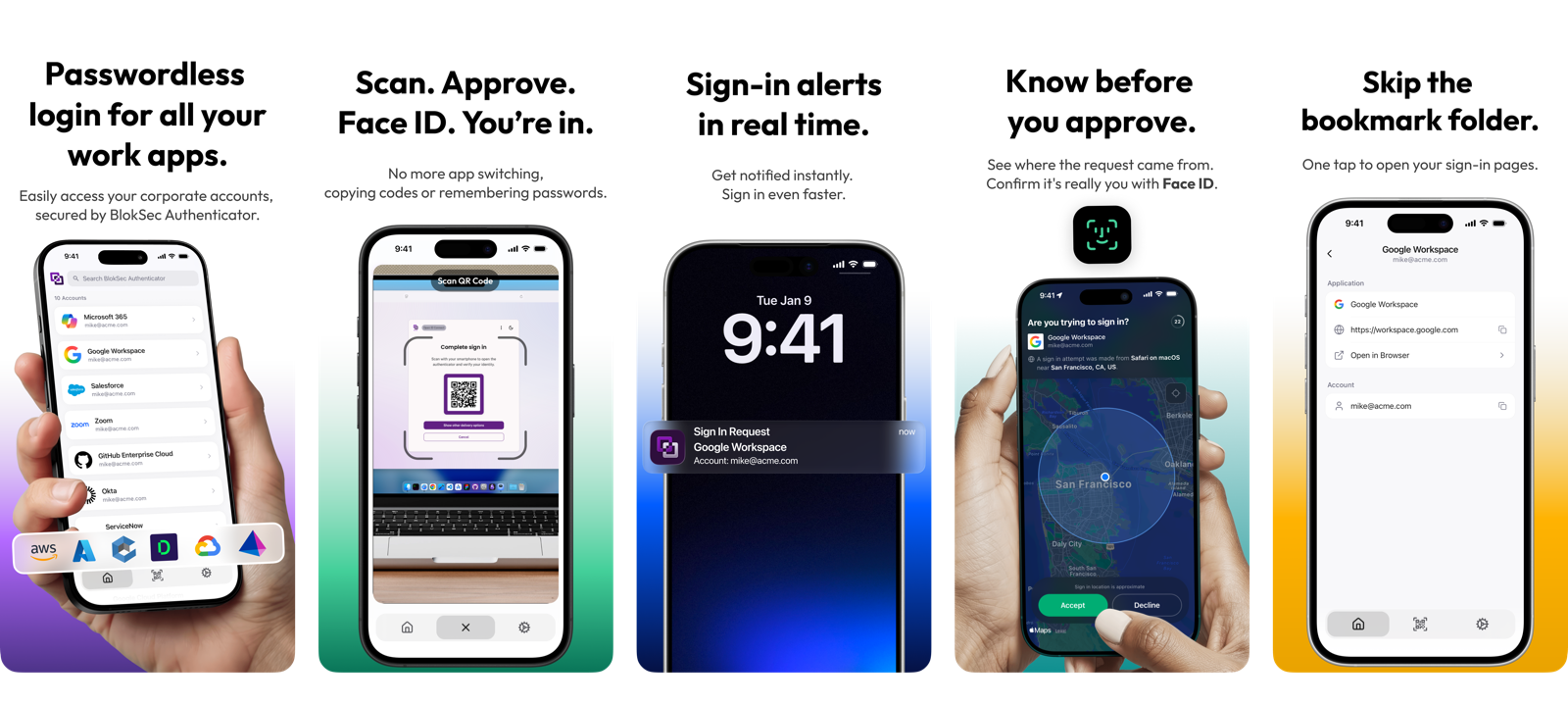
Most users see the App Store listing before installing the app. Installation is initiated at the request of the user’s organization, so the preview screens document day-to-day interactions rather than presenting marketing claims.
Welcome Screen
The welcome screen renders an animated grid of pulsing squares with the BlokSec mark at the center. Each square approximates a QR code pixel, referencing one of BlokSec’s sign-in methods. The mark is built from the same grid cells rather than layered over them.
The grid uses an odd number of rows and columns so there is a true center cell at any screen size or pixel density, and the cells the mark occupies are excluded from the animation.
The animation had to hold frame rate on low-end Android hardware. Per-frame randomness and layout recomputation were the cost, so both were removed. Every 300ms a few squares swap opacity in a staggered sequence. Nothing moves spatially.
The sequence is precomputed at startup from a seeded generator, with a new seed on every cold launch. Runtime randomness and per-frame work drop out, and the pattern is still different each time the app opens. Visible squares hold near 30 percent of the grid in every run, so the composition stays the same while the arrangement does not repeat.
The grid is drawn on a GPU-accelerated Skia canvas using react-native-skia, with opacity transitions running on the native UI thread via react-native-reanimated.
Onboarding and Permissions
Onboarding
BlokSec is invite-only. Organizations provision users, and setup begins from an email invitation. A common pattern is to tell the user to check their email and end the flow there, which requires the user to leave the app and find their own way back.
The BlokSec app instead detects which email clients are installed on the device and opens the selected one directly. The user finds the invitation email, taps the link, and returns to the BlokSec app to continue setup.
The onboarding path stays connected without manual app switching.
Permissions
Within the first minute, the app may request notifications, camera, location, photo library access, and biometrics.
Each permission has an explanation screen with an illustration stating why the permission is requested. The explanation precedes the corresponding system dialog.
Handling Denied Permissions
Permissions can be denied during onboarding or revoked later in device settings. The app handles both cases without dead-ending the user.
If a user opens the QR scanner without camera access, the app replaces the viewfinder with a disabled state stating that camera access is required, alongside an “Open Settings” button that opens the relevant permission toggle.
The same handling applies to notifications. If push notifications are off, the app reports the state at the point it becomes relevant and links to the system setting.
The in-app settings screen lists the current status of each system permission. Tapping a status deep links to that permission’s toggle in the device settings app.
Post-Onboarding
After setup, a user lands in one of two states. Accounts are already provisioned and available, as shown in the onboarding clip, or setup is complete and no accounts have been assigned by the administrator. Neither state is an error condition.
Where no accounts are assigned, the app reports that setup completed and that access will appear once the administrator provisions it.
Backup and Restore
Backup Flow
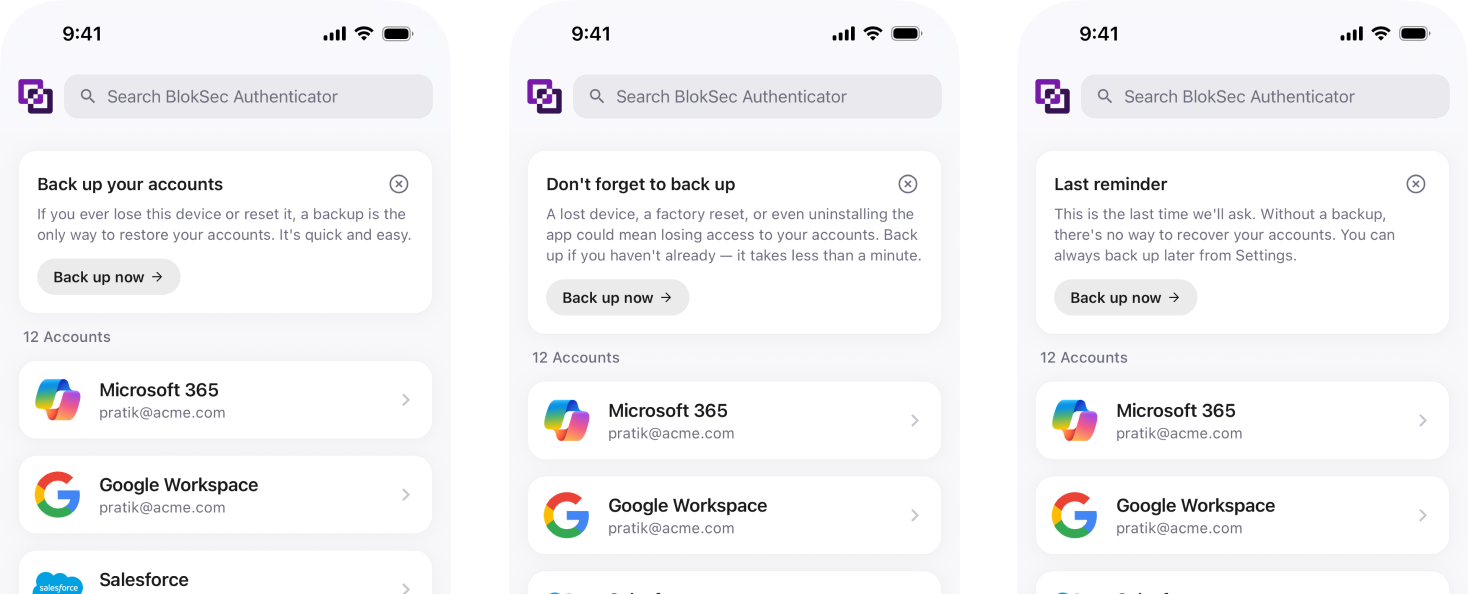
Backups are the one area where responsibility sits with the user. Accounts are encrypted and can be restored only with a backup and passphrase created by the user. If a device is lost without a backup, there is no self-recovery path.
The app uses a three-stage reminder system that escalates over time. Reminder copy is indirect at the first stage and more direct at later stages, matching the increasing risk of running without a backup.
The backup flow requires biometric authentication before it starts, which restricts backup creation to the account holder. An introductory screen states the steps that follow. The passphrase set in this flow is the only recovery key.
The header shows a step indicator and the title of the current step, so the position in the flow and the number of remaining steps are visible throughout.
Restore Flow
Restoring requires scanning or selecting the backup QR code and entering the passphrase, after which accounts are restored. The same step indicator is used.
Authentication Flow
Signing into a workplace application with BlokSec takes seconds. A push notification arrives on the device, or the user scans the one-time QR code shown on a desktop login screen. The user approves the request in the app and verifies with Face ID or another device biometric, which completes the sign-in. Passwords, OTP codes, and context switching are not part of the flow.
The authentication flow is built around one question. Whether the request came from the user.
That is the primary function of an authenticator. The screen displays the requested application, the user account, the requesting device, and the location of the attempt, which is the information needed to confirm a legitimate request or reject a suspicious one.
Displaying the request location was one of the product’s differentiators. The authentication screen is built around a full-screen map showing where the sign-in originated, with the request details and actions overlaid on top. A user in Toronto receiving a request that originated in another country sees the discrepancy on the map before reading the text.
Using a full-screen map as the backdrop required additional handling. Maps are expensive to render, particularly on slow networks, and blocking the request screen on map load would delay a time-sensitive action and reduce reliability.
The map load is therefore deferred and non-blocking. The application, account, requesting device, location text, and accept and decline buttons render immediately and are actionable. The map loads behind them when it is ready. The user can act on complete request details in low-network conditions.
Small details
Adaptive layout
Enterprise account labels can be long. A label such as Microsoft 365 - Acme Enterprise Corp. (SSO) has to render on compact and large screen devices with enlarged OS text sizing. Every screen was built to handle long strings, variable text sizes, and different device classes without truncation.
Motion and haptics
Haptics and motion are applied at a limited frequency. High frequency reads as noise in a security app, and no feedback at all removes a channel that mobile devices provide.
Successful authentications produce one haptic pattern. Errors produce another. The result of the action reaches the user through haptics before they read the screen.
Animations carry the same signal. Tapping accept or decline on the authentication screen triggers an animation that fills the container width, shown in the authentication flow clip at the top of the page. Opening and closing the QR scanner from the home screen tab bar uses a comparable transition.
QR code validation
The QR scanner is strict. It validates that a scanned code is a BlokSec authentication request before proceeding. Anything else is rejected and returns the user to the scanner. A user who scans an unrelated code does not reach a broken state, and a bad actor does not get past the scanner. The camera viewfinder and QR processing logic were built to behave consistently across devices and platforms.
Cross-platform consistency
The iOS and Android apps share the same design. An authenticator has a narrow surface area, and platform-specific divergence would add visual complexity without a corresponding function. BlokSec’s clients manage users on both platforms, so one design means internal documentation and support workflows are written once.
Beyond the app
Outside of the mobile app, I also contributed to some backend services and areas of client-facing admin portal, primarily around device management and push notifications. Some implementation details are intentionally limited.Device management and remote revocation
Enterprise security teams require visibility into which devices are active and the ability to revoke access when a device is lost or an employee leaves. I contributed to the backend services and the areas of the client-facing dashboard that list enrolled devices per user and support single-action revocation for any of them.
Cross-device notification dismissal
Users can have BlokSec installed on more than one device. When a request is handled on one device, the pending notification is dismissed on every other device. A stale notification on a resolved request reports incorrect state. I contributed to the notification system that applies dismissal regardless of which device the user responds from.
Migration from 3.0 to 4.0
The app was rebuilt on a different stack. Accounts, settings, and user state carry over automatically from the legacy app. Existing users updated without re-enrolling through their organization.
If you’re interested in working together, or just want to say hi, my inbox is open.